

Add an OpenID Connect IDP
Configure a federated identity provider connection in the Admin Console.
Identity Providers
Identity Providers (IDPs) let you connect your organization's existing authentication system to the ID Dataweb platform. When an IDP is configured, authenticated user attributes from your identity provider can be passed into verification workflows – enabling prefill, reducing friction for known users, and supporting federated authentication scenarios.
The Identity Providers Page
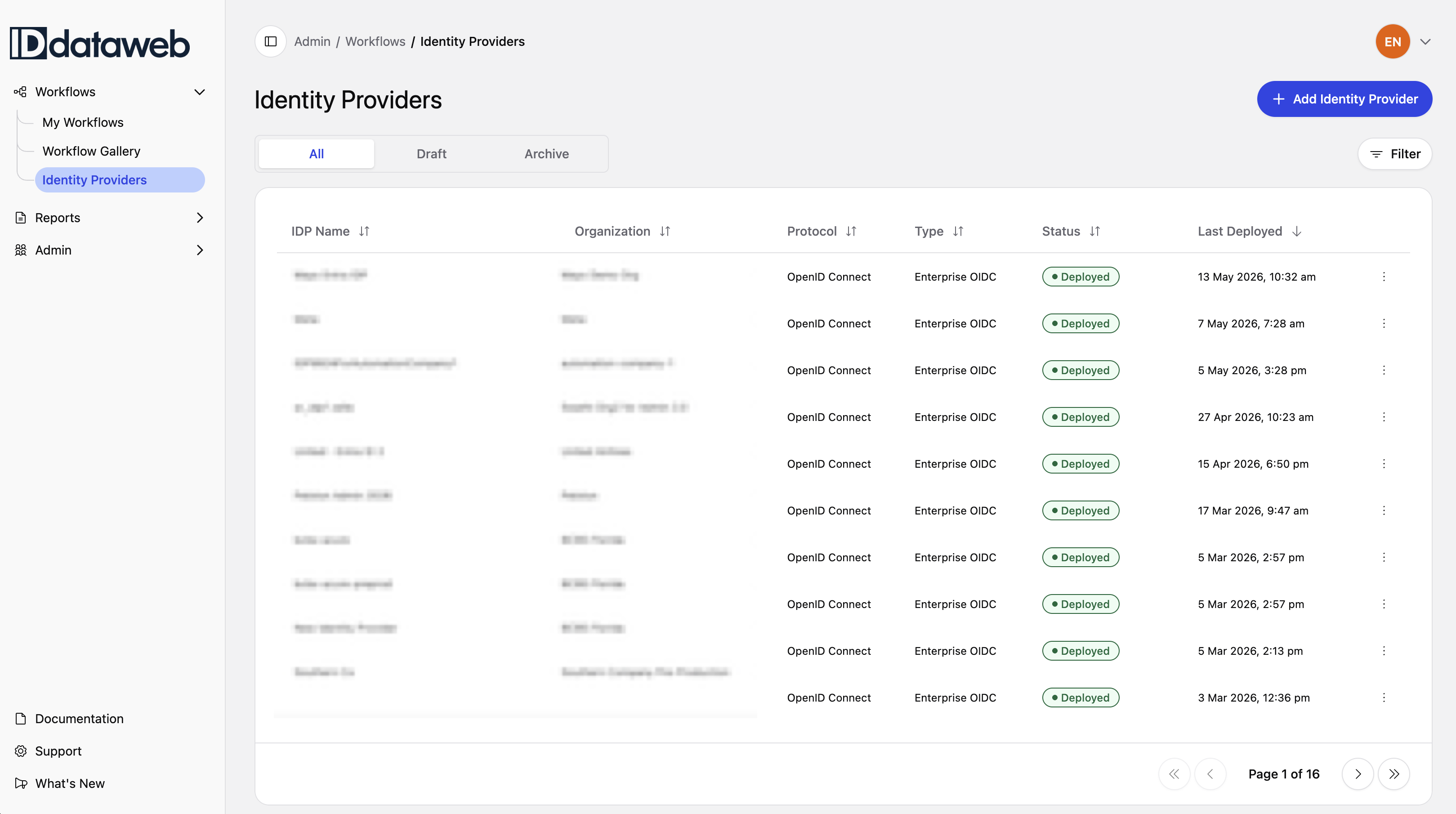
To manage IDPs, expand Workflows in the left navigation and click Identity Providers. The list view shows all configured IDPs with columns for:
- IDP Name – the display name you assigned
- Protocol – the authentication protocol (e.g., OpenID Connect)
- Status – Deployed, Unsubmitted, or Draft
- Last Deployed – timestamp of the most recent deployment
Use the All, Draft, and Archive tabs to filter by status. If no IDPs have been configured, the page shows "Your Organization or Subtenant has no Identity Providers."
Creating an Identity Provider
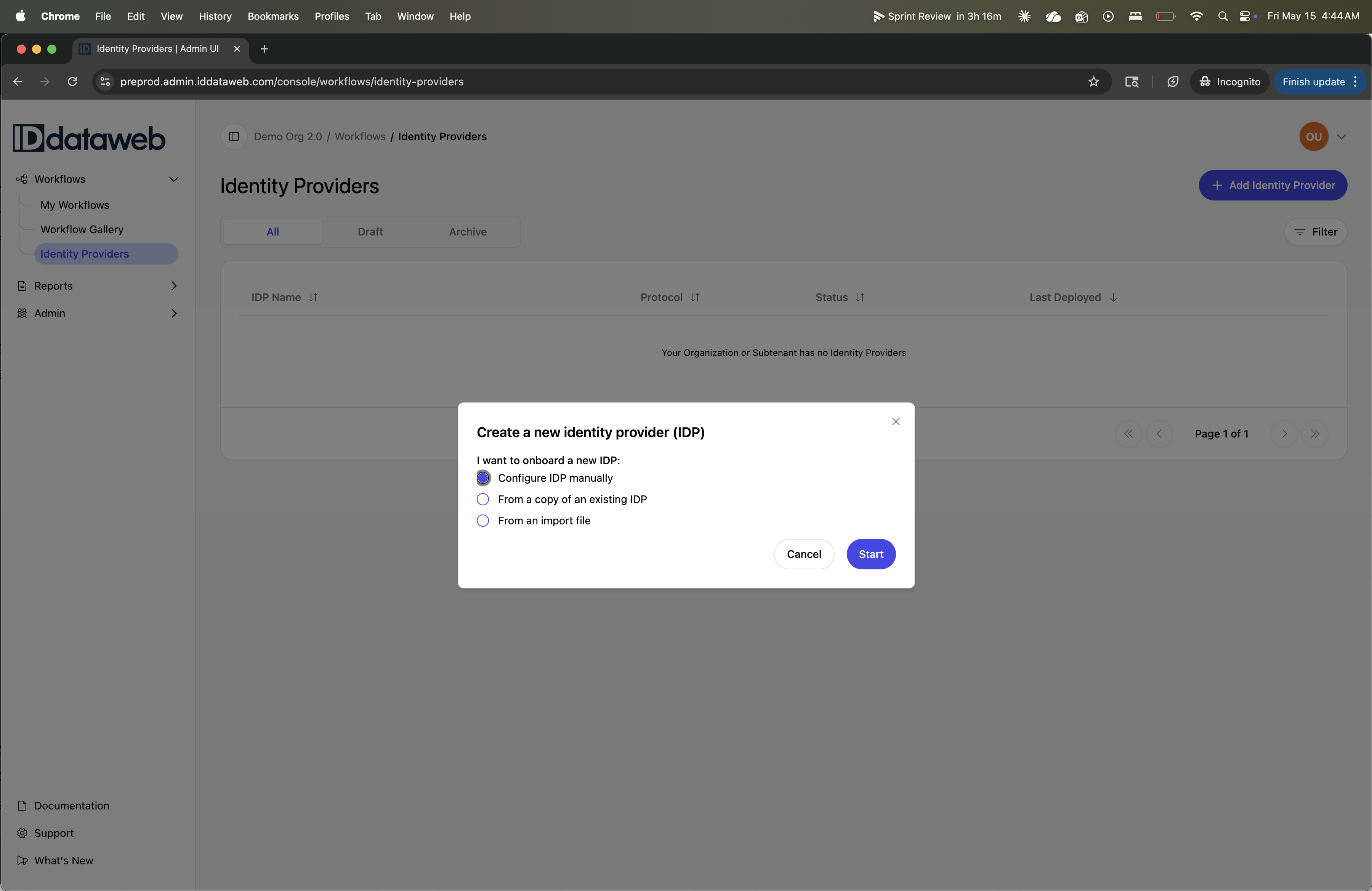
Click "+ Add Identity Provider" in the top right corner. A dialog asks how you want to onboard the new IDP:
- Configure IDP manually – set up a new IDP from scratch by entering all configuration details yourself
- From a copy of an existing IDP – duplicate an existing IDP's configuration as a starting point
- From an import file – import an IDP configuration from a file
Select your method and click Start. You'll be taken to the IDP detail view.
IDP Configuration
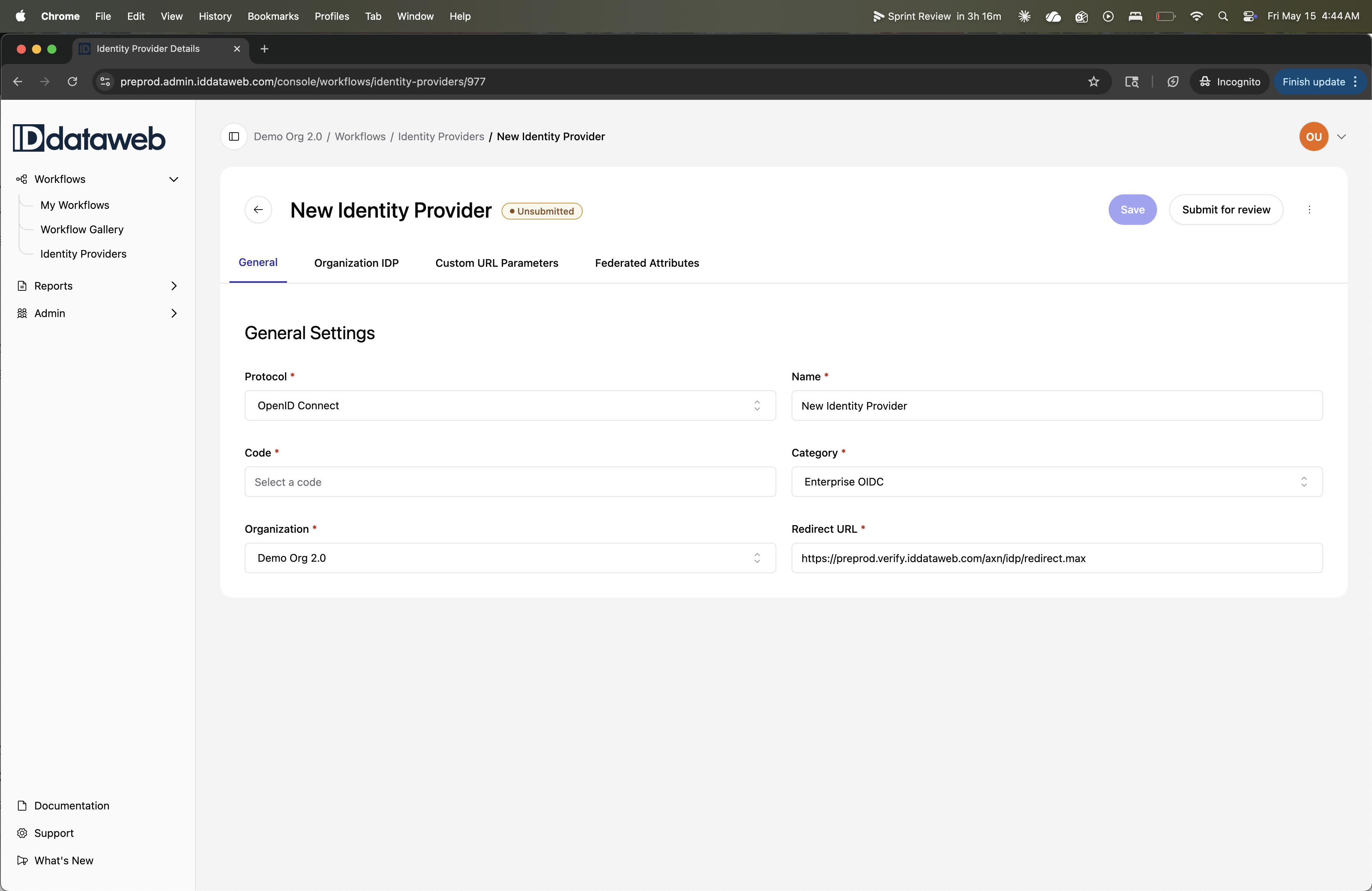
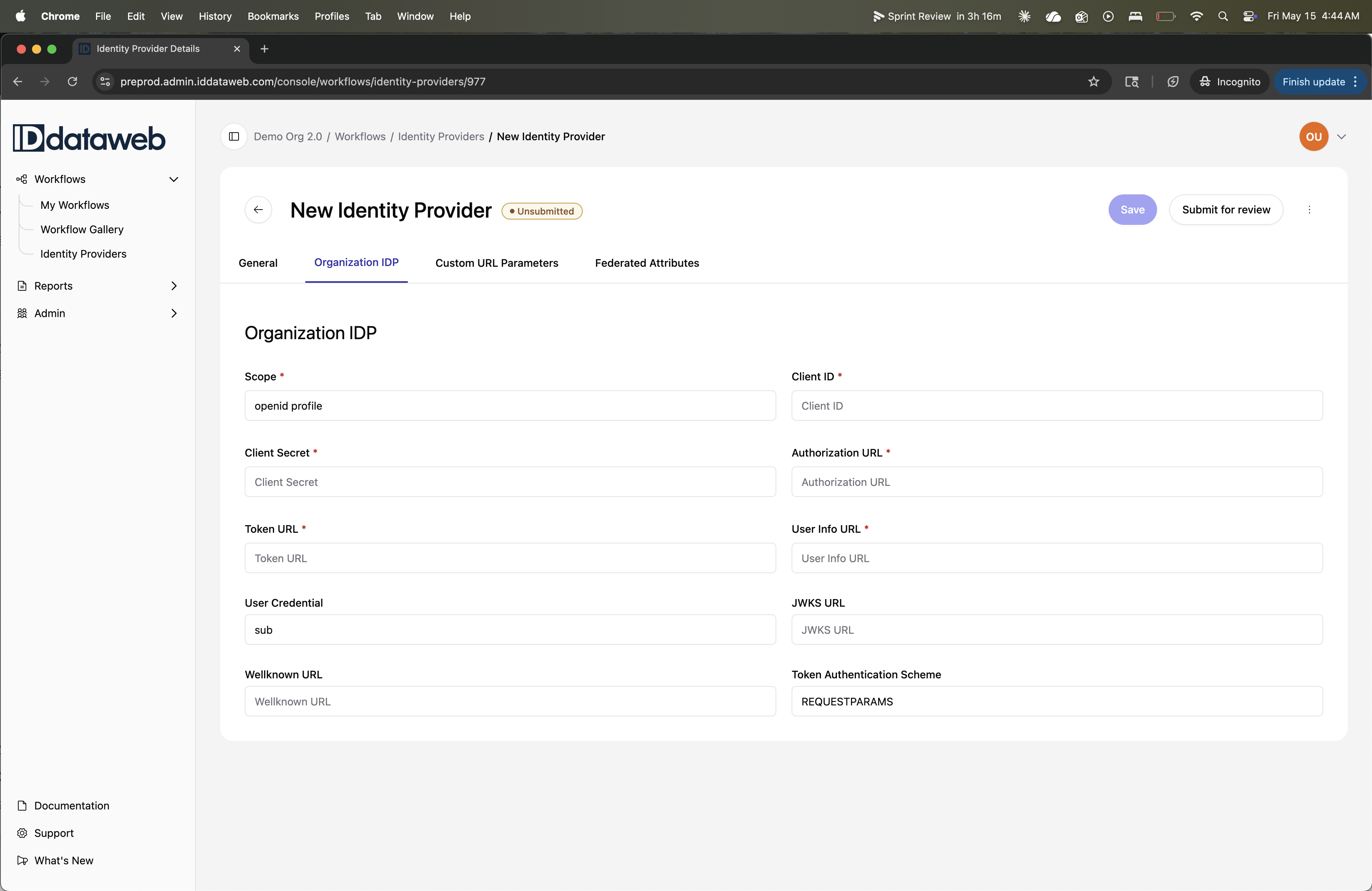
The IDP detail view has four tabs: General, Organization IDP, Custom URL Parameters, and Federated Attributes. The IDP starts in an Unsubmitted state. Use Save to persist changes, and Submit for review when the configuration is ready for deployment.
General
The General tab contains the IDP's identity and routing settings.
Protocol (required) – the authentication protocol. Currently supports OpenID Connect.
Name (required) – a descriptive name for this IDP (e.g., "Okta Production," "Azure AD").
Code (required) – a unique code identifier for this IDP. [TODO: Confirm what the Code is used for – internal reference, API parameter?]
Category (required) – the IDP category. Default is "Enterprise OIDC." [TODO: Confirm available categories.]
Organization (required) – the organization this IDP belongs to (e.g., "Demo Org 2.0").
Redirect URL (required) – the callback URL where your IDP will redirect after authentication. This is pre-populated with a default value (e.g., https://preprod.verify.iddataweb.com/axn/idp/redirect.max). Provide this URL to your IDP administrator when configuring the OIDC client.
Organization IDP
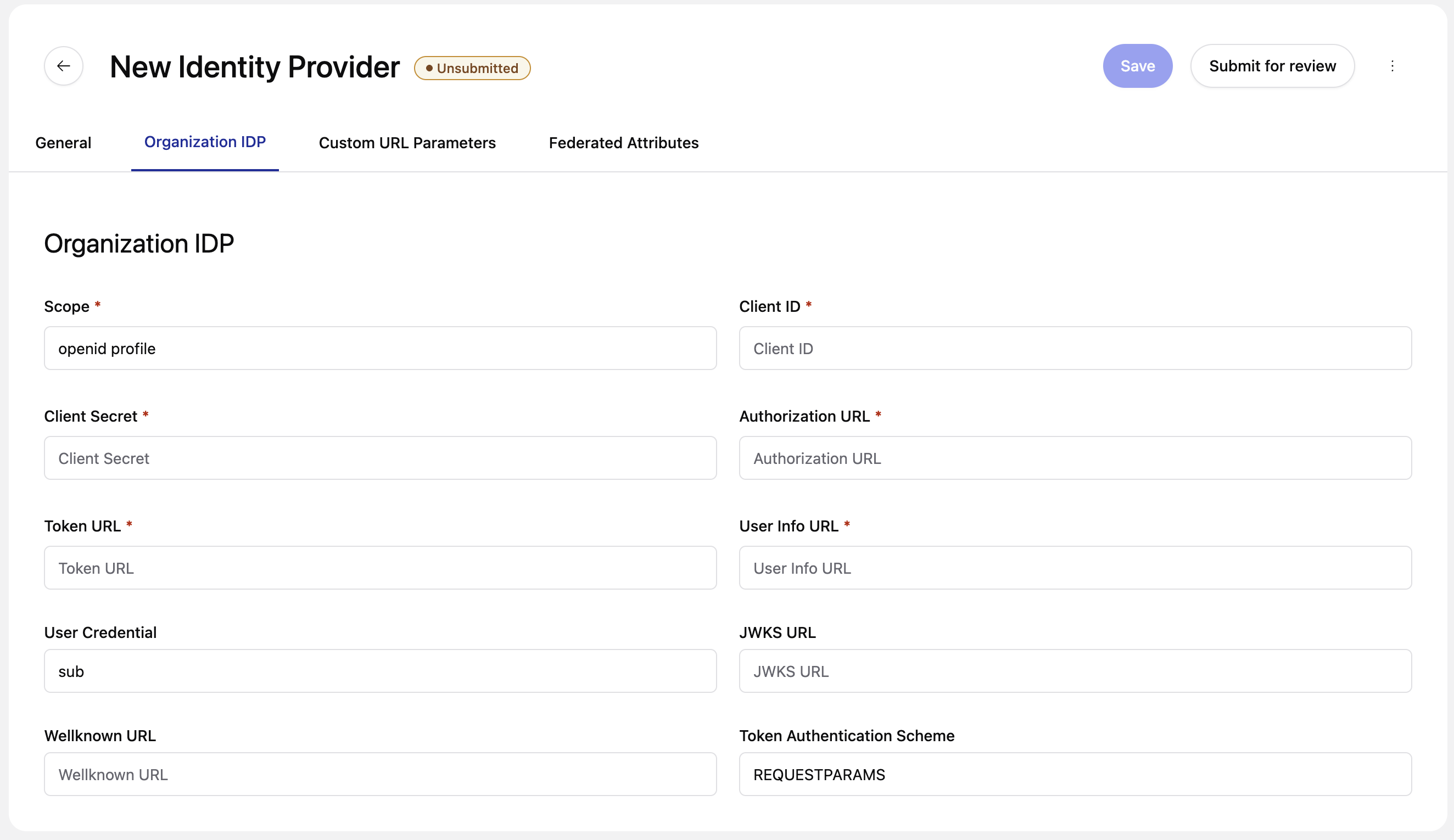
The Organization IDP tab contains the OIDC connection details for your identity provider. All fields are required unless otherwise noted.
Scope – the OIDC scopes to request (default: openid profile). Add additional scopes as needed depending on which user attributes you want to retrieve.
Client ID – the client identifier issued by your IDP when you registered the OIDC application.
Client Secret – the client secret paired with the Client ID.
Authorization URL – your IDP's OIDC authorization endpoint (e.g., https://your-idp.com/oauth2/authorize).
Token URL – your IDP's token endpoint (e.g., https://your-idp.com/oauth2/token).
User Info URL – your IDP's userinfo endpoint (e.g., https://your-idp.com/oauth2/userinfo).
User Credential – the claim used to identify the user. Default is sub (the OIDC subject identifier). Change this if your IDP uses a different claim as the primary user identifier (e.g., email).
JWKS URL – your IDP's JSON Web Key Set endpoint, used to validate signed tokens.
Wellknown URL – your IDP's OIDC discovery endpoint (e.g., https://your-idp.com/.well-known/openid-configuration). If provided, this can auto-populate the Authorization URL, Token URL, User Info URL, and JWKS URL.
Token Authentication Scheme – how client credentials are sent to the token endpoint. Default is REQUESTPARAMS (credentials sent as form parameters in the request body). [TODO: Confirm other available options – e.g., HEADER for Basic auth header.]
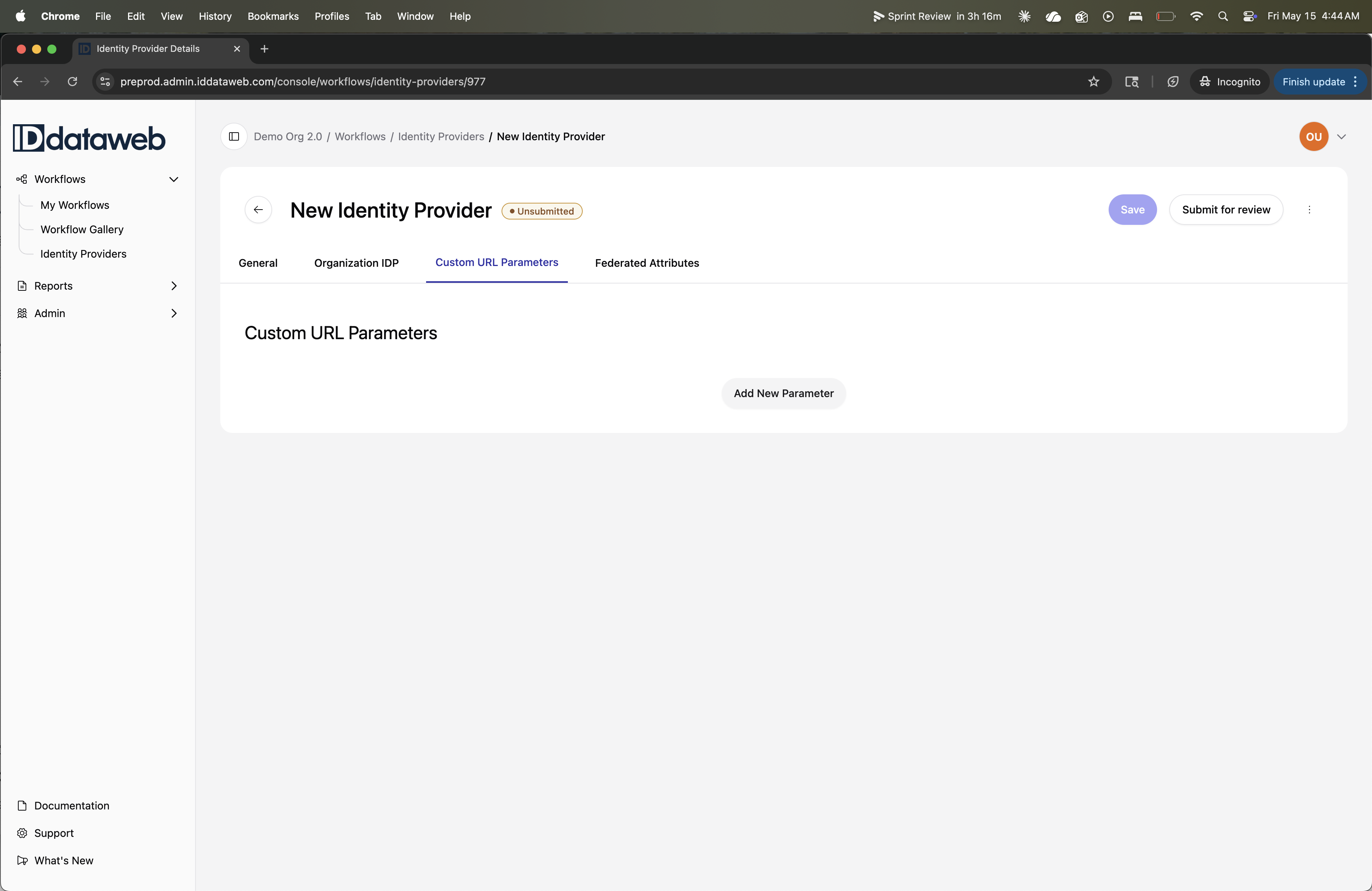
Custom URL Parameters
Custom URL Parameters let you append additional key-value pairs to the authorization URL when redirecting to your IDP. This is useful for passing context or controlling IDP behavior (e.g., specifying a login hint, forcing a particular authentication method, or passing a tenant identifier).
To add a parameter, click "Add New Parameter" and fill in:
- Key (required) – the parameter name
- Value (required) – the parameter value
- URL Type (required) – which URL the parameter is appended to [TODO: Confirm available URL Type options – Authorization URL only, or also Token URL?]
Each parameter has a delete button (trash icon) to remove it. The tab shows a badge with the count of configured parameters.
Federated Attributes
Federated Attributes define how user attributes from your IDP are mapped to ID Dataweb input fields. This is what enables prefill – when a user authenticates through the IDP, the mapped attributes are automatically populated in the verification workflow.
To add a mapping, click "Add New Attribute" and fill in:
- Key (required) – the claim name as it appears in your IDP's token or userinfo response (e.g.,
given_name,family_name,email,phone_number) - Attribute Type (required) – the data type of the attribute [TODO: Confirm available Attribute Type options]
- Iddataweb Field (required) – the corresponding ID Dataweb input field that this attribute maps to (e.g., Name > First Name, Telephone > Telephone Number)
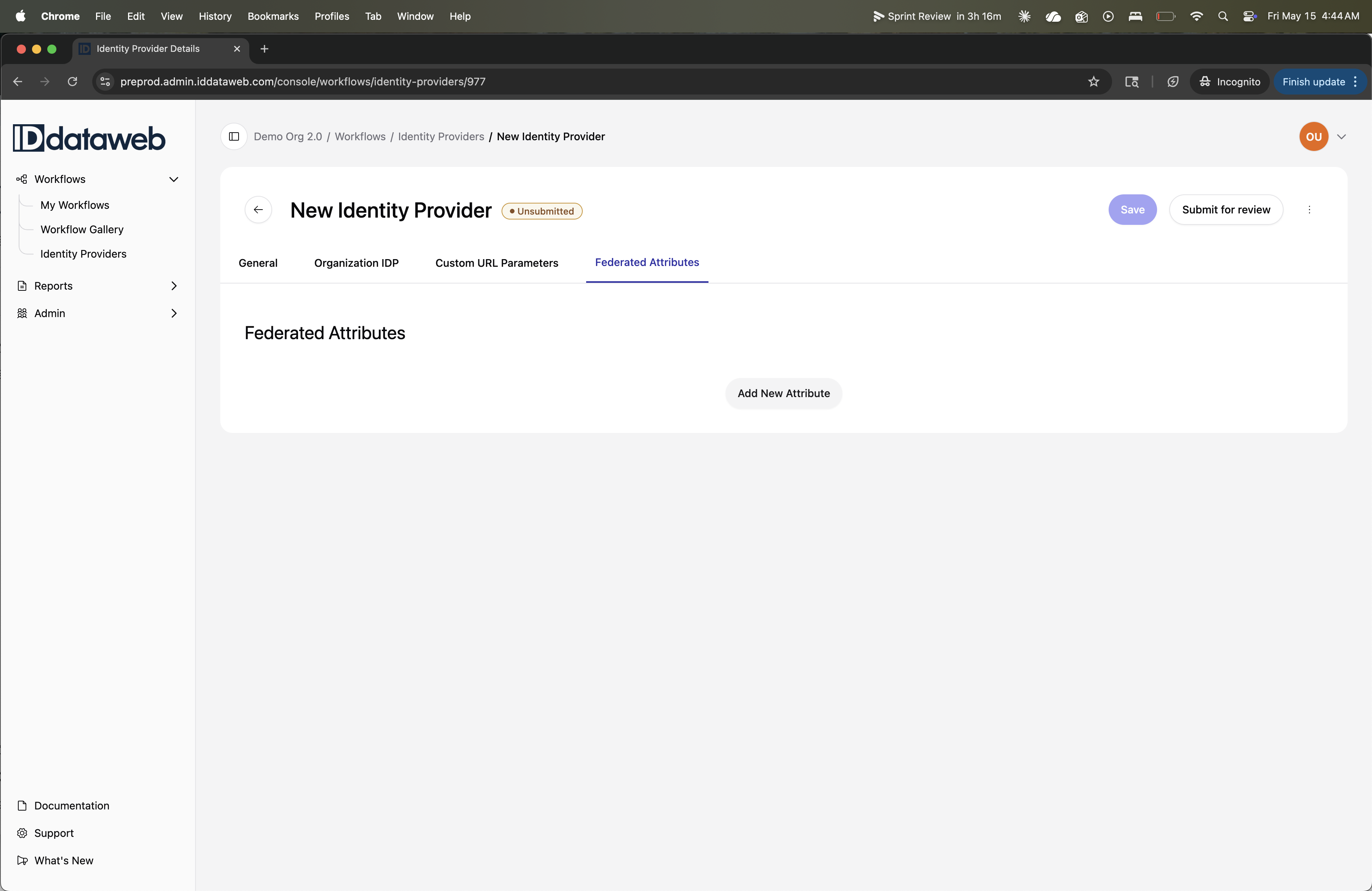
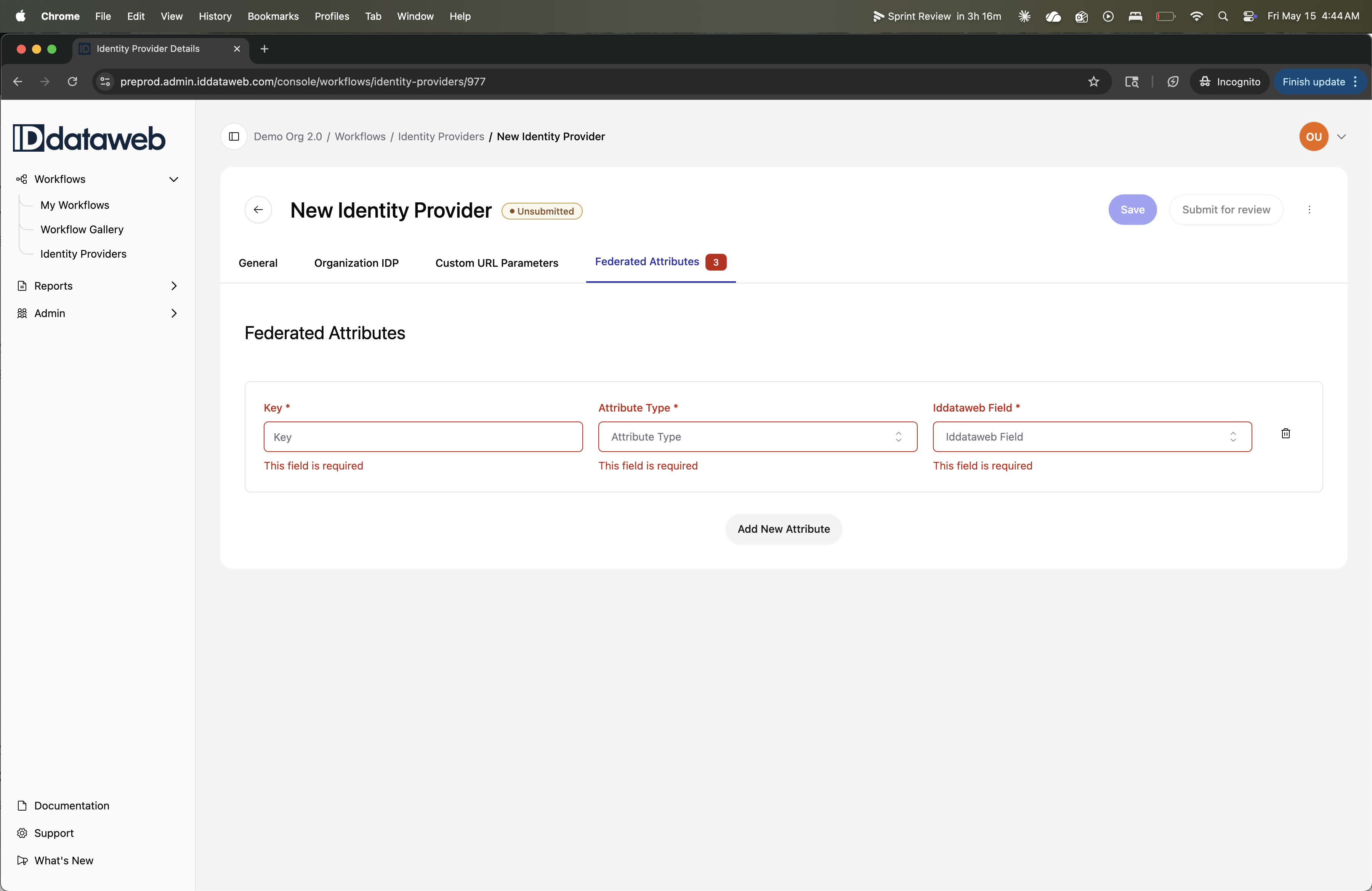
Each mapping has a delete button (trash icon) to remove it. The tab shows a badge with the count of configured attributes.
Saving and Deploying
IDP configurations follow the same lifecycle as workflows:
- Save – persists your changes
- Submit for review – submits the configuration for deployment review
- The three-dot menu (⋮) provides additional actions [TODO: Confirm available actions – Delete, Export, Archive?]
IDPs start in an Unsubmitted state and must be submitted for review before they can be deployed and used in workflows.
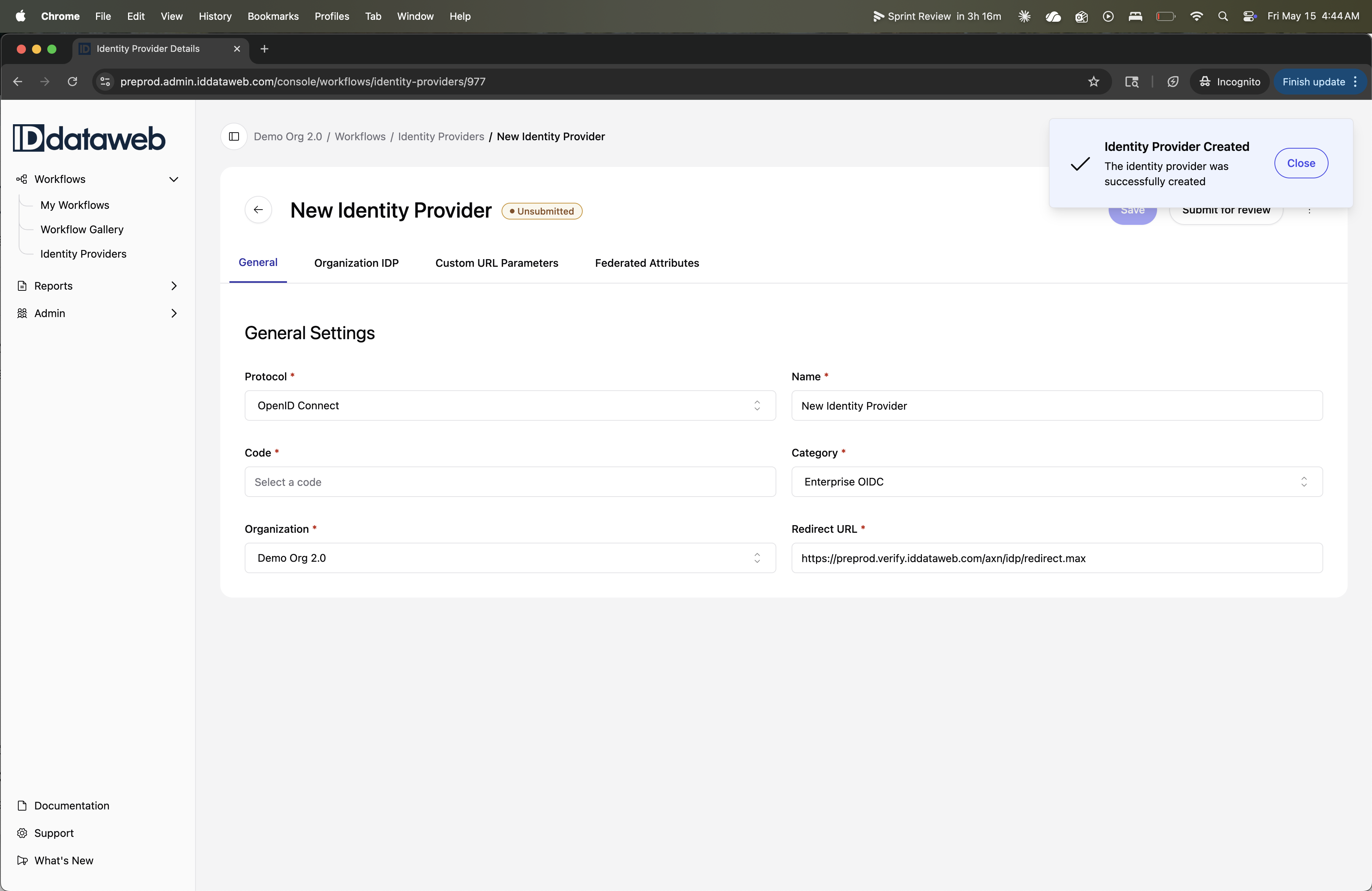
Once submitted, any organization admin can login, navigate to this Identity Provider, and Deploy this IDP and it's configurations.
Next Steps
→ [Gateway (OIDC) Integration] – Learn how to configure your workflow to use the Gateway integration with your IDP.
→ [Advanced Configs > Login Hint / Prefill] – Configure how IDP attributes are used to prefill workflow inputs.
→ [Configure Workflow > Prefill] – Set up prefill at the workflow level.
FROM V1:
Overview
An OpenID Connect IDP connection links the ID Dataweb platform to your organization's existing identity provider (Ping, Okta, Azure AD, Auth0, or any OIDC-compliant provider). Once configured, the connection can be used for two purposes:
- Admin Console SSO — let your team log in to the Admin Console using your company credentials. See SSO.
- Federated Login in workflows — use your IdP as an authentication step inside a verification workflow, so users authenticate to their existing account before being verified.
The setup process is the same for both use cases. The difference is in how the connection is used after it's saved.
Step 1 — Add a new IDP connection
- In the Admin Console, navigate to Identity Providers in the left navigation menu.
- Click Add New Identity Provider.
- Select Create a blank IDP configuration, I will configure it myself.
- Click Create New IDP Provider to open the configuration screen.
Step 2 — Configure the connection
Identity Provider Information
| Field | Description |
|---|---|
| Name | A descriptive label for this connection (e.g. CompanyName-SSO) |
| Code | Auto-generated from the name — no action required |
| Redirect URL | The ID Dataweb endpoint users return to after authenticating. Whitelist this URL on your IdP. |
IDP Endpoints & Credentials
| Field | Required | Description | Example |
|---|---|---|---|
| Scope | Yes | OIDC scopes to request | openid profile email |
| Client ID | Yes | Client identifier issued by your IdP | xxyy12345 |
| Client Secret | Yes | Client secret issued by your IdP | xxyy12345 |
| Authorization URL | Yes | Your IdP's /authorize endpoint | https://login.yourcompany.com/oauth2/authorize |
| Token URL | Yes | Your IdP's /token endpoint | https://login.yourcompany.com/oauth2/token |
| User Info URL | Yes | Your IdP's /userinfo endpoint | https://login.yourcompany.com/oauth2/userinfo |
| User Credential Field | Yes | IdP claim to map to the ID Dataweb credential field | sub or email |
| Token Authentication Scheme | Yes | How credentials are sent to the token endpoint | requestparams or basicauth |
| JWKS URL | No | Your IdP's /jwks endpoint | https://login.yourcompany.com/oauth2/jwks |
| WellKnown URL | No | Your IdP's /.well-known/openid-configuration endpoint | https://login.yourcompany.com/oauth2/.well-known/openid-configuration |
Custom URL Parameters (Optional)
If your IdP requires additional query parameters on specific requests — for example, to route traffic when separate credentials haven't been issued for ID Dataweb — add them here. For each parameter specify the name, value, and which URL it applies to (Authorization URL, Token URL, or User Info URL).
Attribute Mapping (Optional — required for Federated Login in workflows)
Maps claims from your IdP's token response to ID Dataweb fields. Not needed for Admin Console SSO, but required if this connection will be used to prefill fields in a verification workflow.
| Field | Description |
|---|---|
| Key | The claim name as returned by your IdP (e.g. given_name) |
| Attribute Type | The ID Dataweb attribute type to map to (e.g. FullName) |
| ID Dataweb Field | The specific sub-field within that attribute type (e.g. fname) |
Step 3 — Save and submit for review
- Click Save at the bottom of the configuration screen.
- Return to the Identity Provider list.
- Click the … menu next to your new connection and select Submit Change Request for Review.
- Confirm the submission.
The connection will be reviewed and activated by the ID Dataweb team. Once approved it becomes available for use in Admin Console SSO and verification workflows.
Step 4 — Register the redirect URL with your IdP
Add the ID Dataweb redirect URL to your IdP's allowed redirect URIs:
| Environment | Redirect URL |
|---|---|
| Preproduction | https://preprod1.iddataweb.com/preprod-axn/axn/idp/redirect.max |
| Production | https://prod2.iddataweb.com/prod-axn/axn/idp/redirect.max |
Related Resources
→ SSO | → User Management & Permissions | → Org Structure
Updated 5 months ago