

Endpoint Settings
Workflow Settings allow you to customize how your verification workflows operate, integrate with external applications, manage verification sessions, return results, and more.
You can configure workflow-level settings under the Details tab or customize individual verification steps directly in the Workflow Builder.
Access Workflow Settings
- Navigate to My Workflows in the Admin Console.
- Select the workflow you want to configure.
- Open the Details tab.
- Select General or Integration from the left navigation.
- Expand the configuration section you want to customize.
- Update the settings and click Save.
Note: Available settings may vary depending on your workflow configuration and selected integration type.
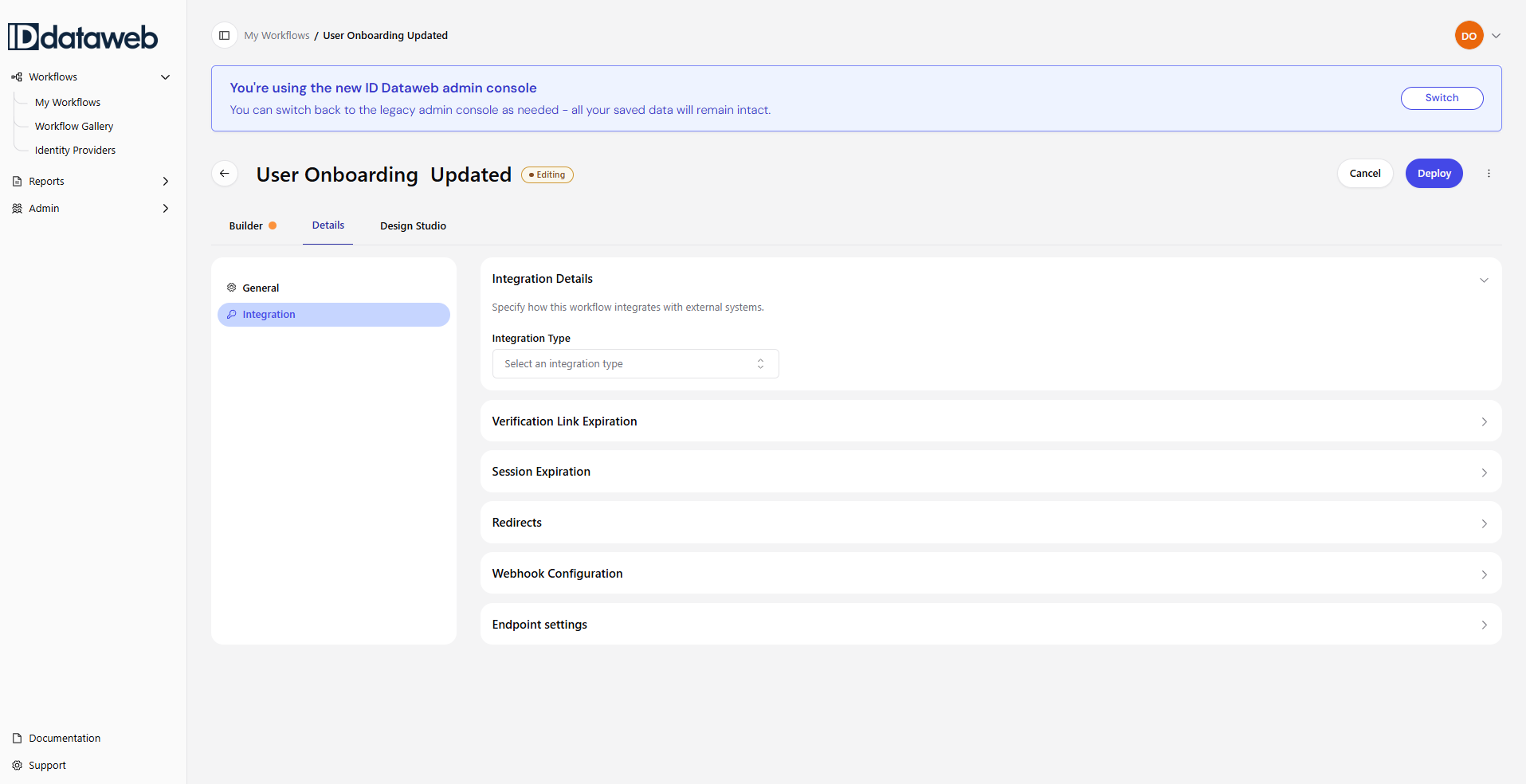
Endpoint Settings
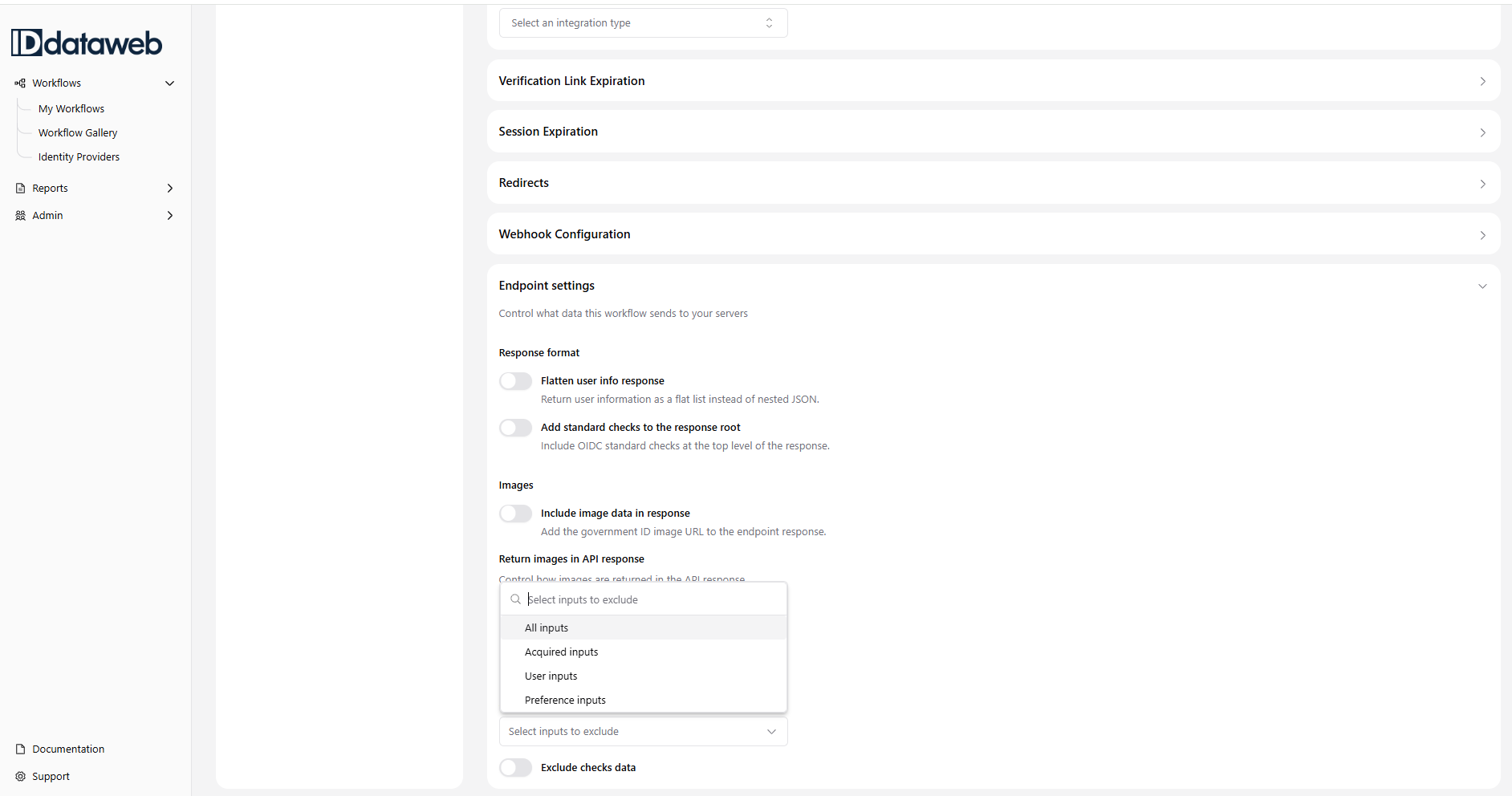
Endpoint Settings allow you to control what information your workflow returns to your application and how that information is structured in the API response.
You can customize the response format, configure how verification images are returned, and exclude specific data that your application does not need.
By default, all toggle options are set to Off.
Response Format
Response Format controls how user information and verification checks are structured in the workflow response.
| Setting | Description |
|---|---|
| Flatten User Info Response | Returns user information as a flat list of properties instead of nested JSON. Enable this option if your application requires a simplified response structure. |
| Add Standard Checks to the Response Root | Includes standard OpenID Connect (OIDC) checks at the top level of the response instead of keeping them within the nested response structure. |
Images
The Images section controls whether government ID image information is included in the response and how verification images are returned through the API.
Include Image Data in Response
Enable this option to include the government ID image URL in the endpoint response; this setting is for gateway use cases.
- On: Includes the government ID image URL in the response.
- Off (Default): Does not add the government ID image URL through this option.
Return Images in API Response
Select how verification images should be returned to your application; this setting is for API integration.
| Option | Description |
|---|---|
| Do not return images (API) | Default setting. Images are excluded from the API response. |
| Return images as links (API) | Generates new links to the images and includes them in the API response. |
| Return images as base64 (API) | Encodes image values as Base64 and includes them in the API response. |
| Return images as submitted (API) | Returns images in the same format in which they were received. |
Note: Returning images as Base64 can increase the size of the API response. Select the format that best supports your application's integration requirements.
Exclude from Response
This section allows you to exclude specific categories of input data or verification check data from the workflow response.
Exclude Input
Select which input data should be excluded from the response object.
| Option | Description |
|---|---|
| All inputs | Excludes all input data from the response. |
| Acquired inputs | Excludes information acquired during the verification process. |
| User inputs | Excludes information provided directly by the user. |
| Preference inputs | Excludes preference input data from the response. |
Exclude Checks Data
Controls whether verification checker data is included in the response.
- On: Excludes checker data from the response.
- Off (Default): Does not exclude checker data through this setting.
Tip: Use these options to limit the information returned to your application. Excluding unnecessary data can simplify response processing and help minimize the sharing of sensitive information.
Note: Endpoint Settings affect the information returned in the workflow response. Review these configurations carefully to ensure they align with your application's integration and data-handling requirements.
Updated 6 days ago