

Integration Details Setting
Workflow Settings allow you to customize how your verification workflows operate, integrate with external applications, manage verification sessions, return results, and more.
You can configure workflow-level settings under the Details tab or customize individual verification steps directly in the Workflow Builder.
Access Workflow Settings
- Navigate to My Workflows in the Admin Console.
- Select the workflow you want to configure.
- Open the Details tab.
- Select General or Integration from the left navigation.
- Expand the configuration section you want to customize.
- Update the settings and click Save.
Note: Available settings may vary depending on your workflow configuration and selected integration type.
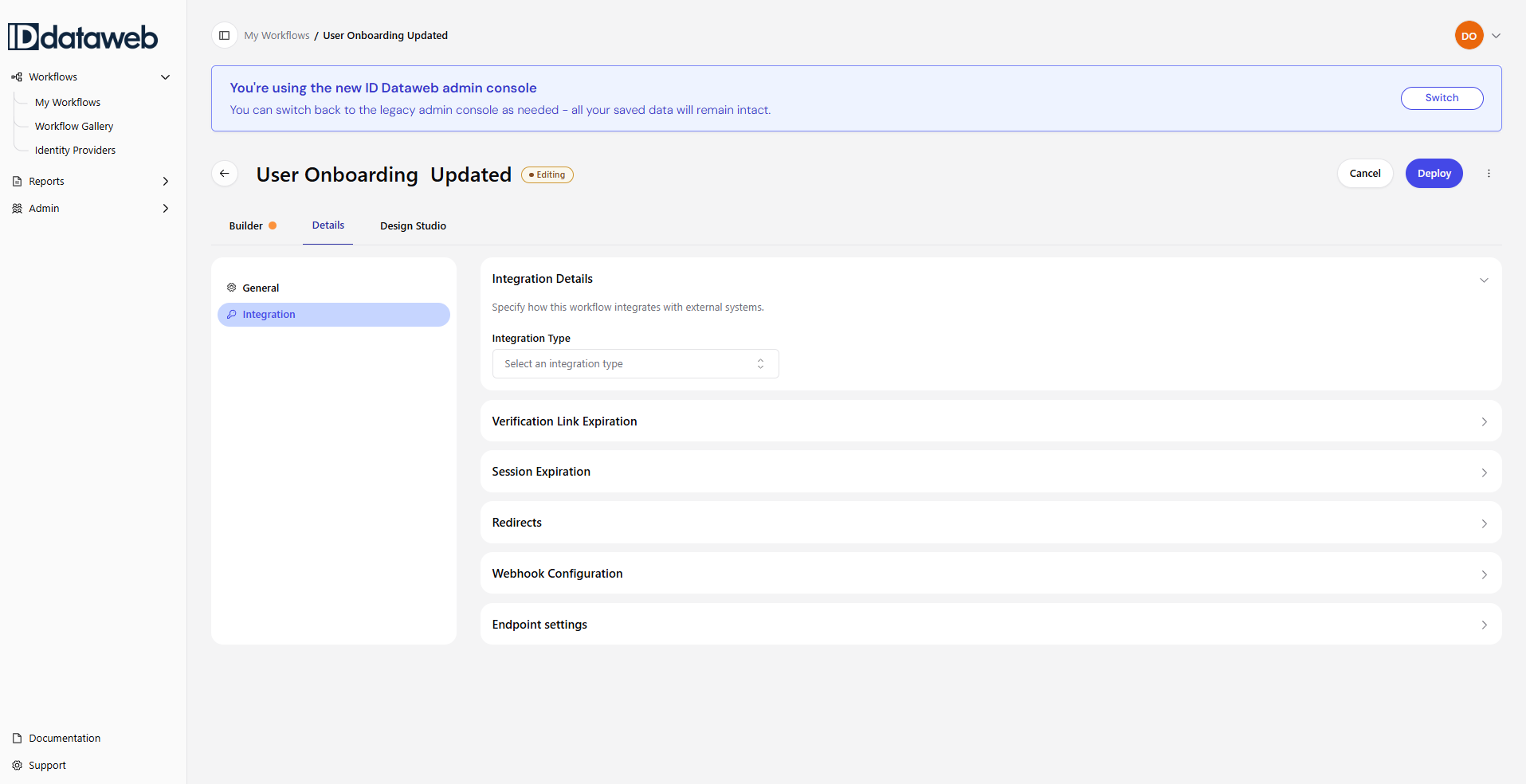
Integration Details
Integration Details allow you to specify how your workflow integrates with external systems.
Selecting an integration type simplifies workflow configuration by displaying only the settings relevant to your integration method. This reduces unnecessary configuration options and makes it easier to manage your workflow.
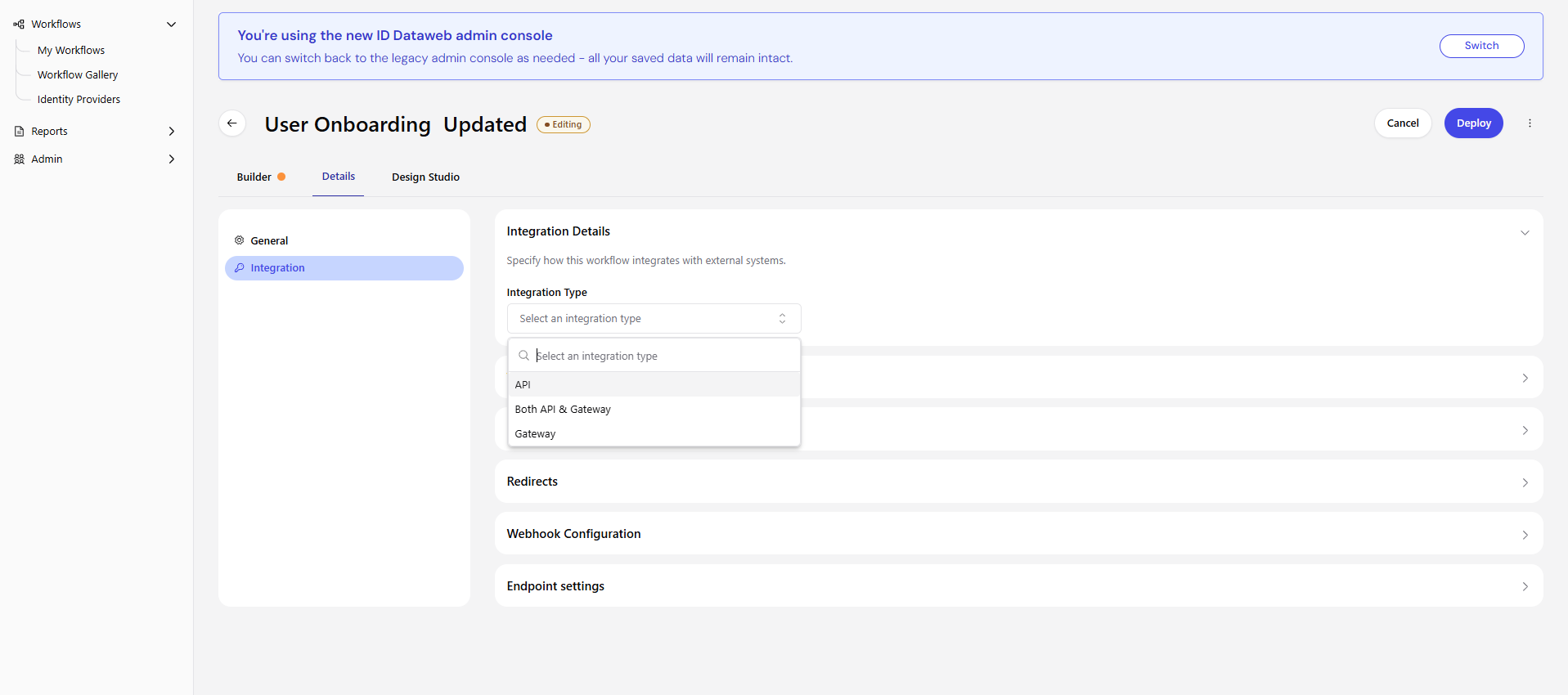
Integration Type
Choose the integration type that best matches how your application will interact with the verification workflow.
| Integration Type | Description |
|---|---|
| API | For workflows integrated through APIs. The Admin Console displays API-relevant settings and hides configurations specific to Gateway integrations. |
| Gateway | For workflows using the ID DataWeb Gateway to guide users through the verification process. The Admin Console displays Gateway-specific settings and hides configurations that are not applicable. |
| Both API & Gateway | For workflows supporting both integration methods. The Admin Console displays configuration options applicable to both API and Gateway integrations. |
Note: The available workflow settings automatically adjust based on the selected integration type, helping you focus on the configurations relevant to your implementation.
Updated 6 days ago